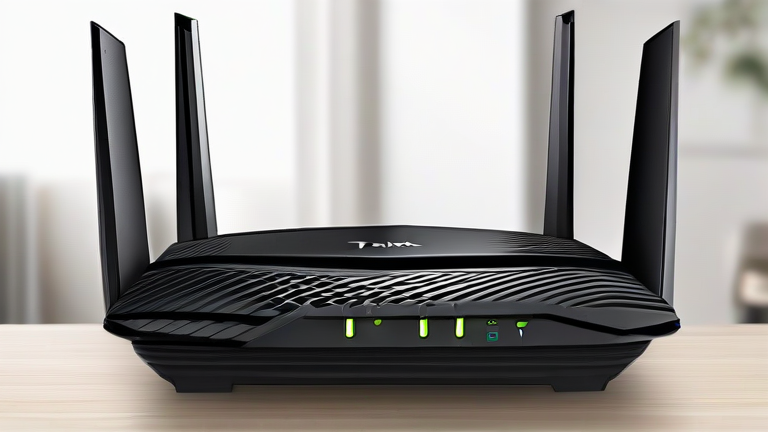
TL;DR: To reset your TP-Link Archer router, locate the small reset hole on the back panel, press and hold the button inside with a paperclip for about 10 seconds until the LEDs flash, then release. This action restores the device to its original factory settings, erasing all custom configurations and requiring you to set up your network again.
Why Reset Your Router?
If you want to dig deeper, check out our guide on 7 Proven SEO Strategies to Grow Your Business in 2024.
There are several reasons why you might need to reset your TP-Link Archer router. Perhaps you forgot your admin password, or your Wi-Fi network is experiencing persistent connectivity issues that troubleshooting hasn’t resolved. Resetting the device can clear out corrupted settings or remove unauthorized devices that may have been added to your network. It is a powerful tool for troubleshooting, but it is also a nuclear option because it deletes all your personalized settings, including Wi-Fi names, passwords, and port forwarding rules.
Preparing for the Reset
Before you begin, ensure you have a paperclip or a similar thin, pointed object ready. You will also need to remember that after the reset, you will have to reconfigure your internet connection. If you have any specific settings like static IP addresses or parental controls, write them down or take screenshots beforehand. It is also helpful to connect your computer to the router via an Ethernet cable during the setup process to ensure a stable connection while you reconfigure the device.
Step-by-Step Reset Instructions

Step 1: Locate the Reset Button. Turn your router around and find the small hole labeled “Reset” on the back panel. It is usually located near the power jack or the Ethernet ports. Do not confuse this with the WPS button, which is typically larger and separate.
Step 2: Power On the Device. Ensure your router is plugged in and powered on. The reset function only works when the device is receiving power. If the router is off, the button will not trigger the reset sequence.
Step 3: Press and Hold. Insert the straightened paperclip into the reset hole. Gently press and hold the button inside. You must hold it for approximately 10 seconds. Keep holding it even if the lights change, until you see all the LEDs flash simultaneously or the router restarts. This visual cue confirms that the factory reset has been initiated.
Step 4: Wait for Reboot. Once the LEDs flash, release the button. The router will take a few minutes to reboot. During this time, do not unplug the device. The lights will eventually stabilize, indicating that the reset is complete and the device is back to its default state.
Tips for Post-Reset Setup
After the reset, access the router’s web interface by typing tplinkwifi.net or 192.168.0.1 into your browser. The default username and password are usually “admin” for both fields. Set up your Wi-Fi network name (SSID) and a strong password immediately. If you have an ISP that requires specific PPPoE credentials, you will need to enter those now. Consider updating the firmware to the latest version to ensure security and performance.
FAQ
Q: Will resetting my router delete my internet service?
A: No, resetting the router only erases the local configuration settings. Your internet service provider connection remains active, but you will need to re-enter your ISP credentials if they are required.
Q: What if I don’t know my admin password after resetting?
A: After a factory reset, the default credentials are used. For most TP-Link Archer models, the username is “admin” and the password is “admin”. Check the label on the bottom of the router for specific default
Leave a Reply